Quick Start (iOS)
1) Add the CrowdGlow framework into your app
Add the CrowdGlow.framework folder from the SDK to the root level of your xcode project
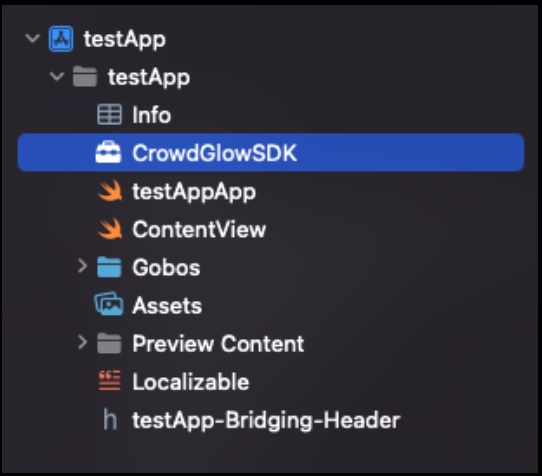
2) Add CrowdGlow to your Swift Bridging Header
If your Swift app doesn’t already have a bridging header, add a new Header file to the root of your xcode project with following name: YourAppName-Bridging-Header
Add the following import line to this bridging header:
#import <CrowdGlowSDK/CrowdGlowSDK.h>
3) Add the CrowdGlow View to the root level of your app
Add the CrowdGlow View to the top level of your app. It should be placed on top of all over views at the root level of the app (For example using a ZStack). It is fully transparent and will not block any taps or gestures to your app beneath it. It will only become visible when it receives a light show signal from the CrowdGlow system.
import SwiftUI

@main
struct CrowdGlowApp: App {
    @State private var allowsHitTesting = false

    var body: some Scene {

        WindowGroup {
            ZStack{
                ContentView()
                let crowdGlowView = CrowdGlowView(
                    onLightShowStarted: {
                        allowsHitTesting = true
                    },
                    onLightShowStopped: {
                        allowsHitTesting = false
                    },
                    apiKey:"CROWDGLOWAPIKEY",
                    allowedTransmitterIds:[]
                )

                crowdGlowView
                    .onAppear {
                        crowdGlowView.start()
                    }
                    .allowsHitTesting(allowsHitTesting)
                    .edgesIgnoringSafeArea(.all)
            }
        }
    }
}
4) Add the CrowdGlow Status View
The CrowdGlow status view can be placed any where you wish in your app, it is a simple status label and button depending on the current CrowdGlow status. It should be placed in a logical location in your app, so the user knows when / where at your event they can use the light show. Ideally this should be a light show / event specific section of the app, and easily found as the user will need to find this status view and tap the “Allow Light Show” button once to be able to take part.
You can pass in colours for the text and button, the view has no background so can easily fit in within your existing app design.
   CrowdGlowStatusView(
        statusTextColour: .red,
        statusTextFontName: "AvenirNext-Regular",
        statusTextFontSize: 16,
        statusTextAlignment: .left,
        actionButtonColour: .systemBlue,
        actionButtonTitleColour: .white,
        actionButtonTitleFontName: "AvenirNext-Bold",
        actionButtonTitleFontSize: 16,
        actionButtonHeight: 60,
        defaultVenueId: 1
    )
5) Copy CGAssets folder
Copy the CGAssets folder from the SDK into the root of your app.
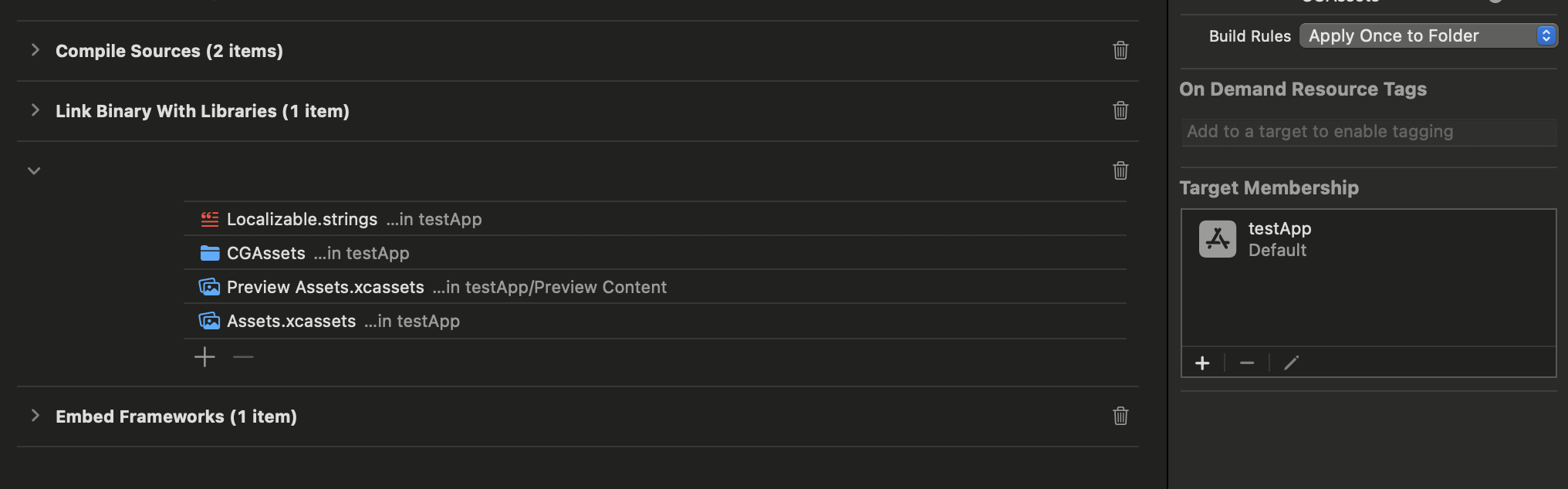
CGAssets contains Gobos, Palettes and optionally Maps in a single folder. This folder should have the build rules set to Apply Once To Folder and your app should be added as a target membership.
6) Add bluetooth permissions to your app properties
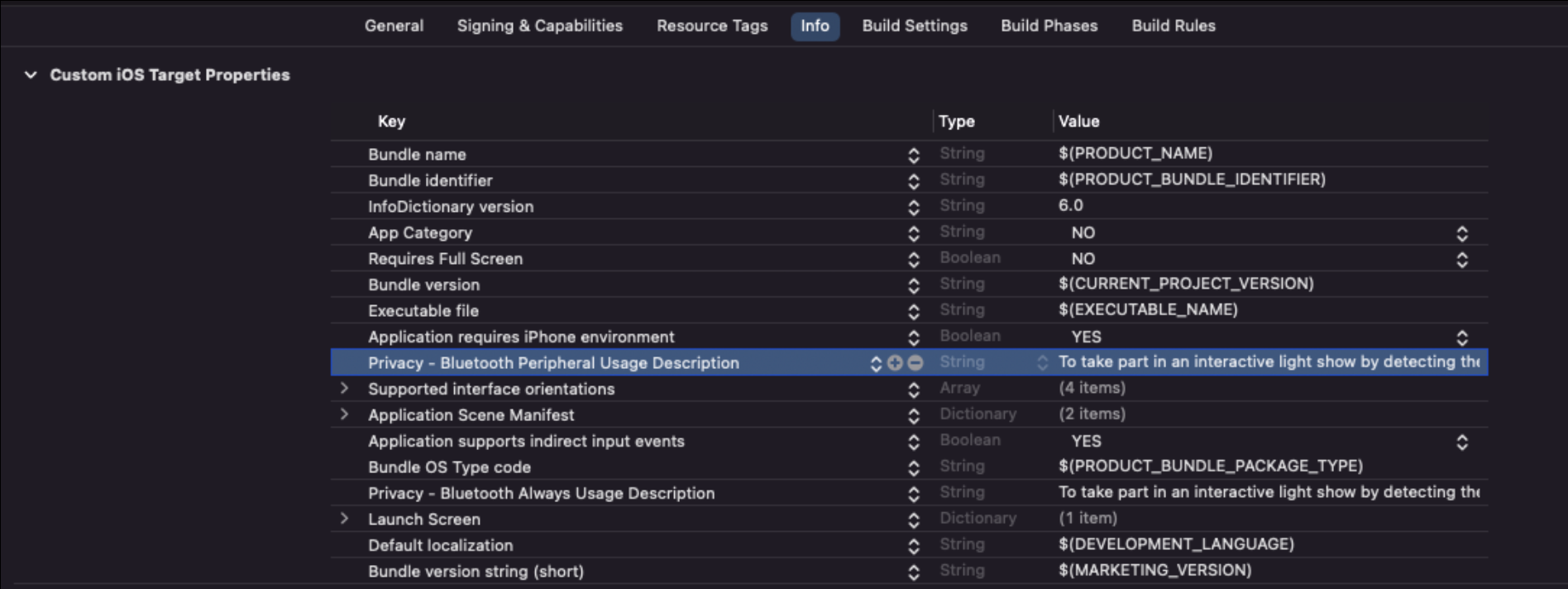
The CrowdGlow SDK requires a bluetooth usage description to to be added to your Info.plist / Apps Info properties. The wording provided can be translated in your apps native language, however the phrasing has been shown to be accepted by Apples review process.
Key: "Privacy - Bluetooth Always Usage Description"
Value: "To take part in an interactive light show by detecting the CrowdGlow bluetooth signal at events. No connection is made directly to your phone, and no data is collected."```
7) Add Localizable Strings
The following strings can be added to your apps Localizable.strings file and to allow you to customise the messages show in the CrowdGlow Status view.
"onboarding_label" = "This app makes your phone part of tonight’s light show. To join in, tap below and allow Bluetooth usage when prompted.\n\nWe never connect to your phone and no data ever leaves your device.";
"inside_venue" = "Open this app during the show when you are asked to! You’ll become part of the light show!";
"outside_venue" = "Open this app when you are at the event site. You’ll become part of the light show!";
8) Test & Build your app for the app store
You can now build the app and test the functionality using the CrowdGlow demo transmitter that we have sent you. Additionally, please invite joe@crowdglow.uk to the test flight build of your app and we will fully test the CrowdGlow functionality to verify correct integration.
Upon submission to the app store, Apple may request a video demo of your app working with the light show as it is functionality they are unable to review themselves as they do not have a CrowdGlow system available. You can see an example demo video we have previously used here: https://vimeo.com/771306751/c2927324b4 A simple walk through on a real phone of the exact app version you’re submitting is all they need to see.